Wednesday, August 7, 2019

All About UiPath Tool

All About UiPath 

How To get Started

UiPath has GUI which consist of multiple panels. It offers easier access to specific functionalities.
Following are the main components of UiPath Studio:
  • The Ribbon
  • The Universal Search Bar
  • The Activities Panel
  • The Library Panel
  • The Project Panel
The Ribbon:

It consists of the following four tabs:

1. Start – It helps in to create any new project or to open a previously created task. By default, all the projects are created in C:\Users\Username\Documents\UiPath.


2. Design – It offers all the options to create or launch any sequences, flowcharts or, access wizards and, manage variables.


3. Execute –It will help in running or stop any projects. Before starting the debug process, it will slow down steps and open logs.


4. Setup – To publish a project or create a shortcut for it, schedule tasks, and install extensions


The Universal Search Bar:

The Universal Search bar allows the user to search for anything contained in the libraries, activities, project and the Designer panels.


The Activities Panel: The Activities panel allows quick access to all available activities that can be dragged to the current project.


The Library Panel: The Library panel allows you to reuse automation. A search box is also given to find items faster.


The Project Panel: The Project panel allows to view the contents of the current project and open the file location in a Windows Explorer.


Monday, August 5, 2019

UiPath Use case for Resumes Sorting In HR Process

       UiPath Automation For HR process 

Resumes Sorting


 Description:  I a Hr Process there are more than 500 resumes and Hr need s to  screen each and every resume and sort based of job profile and Technology for conducting Interview based on requirement so it takes Lot of Time for Hr to screen each and every resume so with the help of RPA this can be automated where Robot scan each and every resume whether it is PDF or Word file and move the particular to respected folder name of technology so it becomes easy for Hr to directly to particular folder and view the resume instead of screening all resumes.

Prerequisites:  1. Create a root folder where you save all your Resumes(PDF+Word).
                          2. Create sub folder where you want to save all sorted resume based on technology name .

Lets Start;

Step 1 : 
 
Take a assign activity and  create a variable for root folder  (RootFolder)
Step 2:

Take a assign activity and create a variable for resumes folder (ResumesFolder)
Step 3 :

Take a assign activity to store the location of Pdf folder (pdfResume_Folder)
Step 4 :

Take a assign activity to store the location of Pdf folder (docResume_Folder)
Step 5 :

Take a assign activity to get files from pdf folder (filedpdf)
Step 6 :

Take a assign activity to get files from Docfolder (fileddoc)
Step 7 :

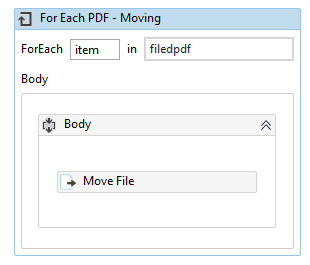
Take For each activity t move each pdf file to move to pdf folder (For each fildepdf)
Step 8 :

Move file activity to move files to pdf folder


Step 9 :

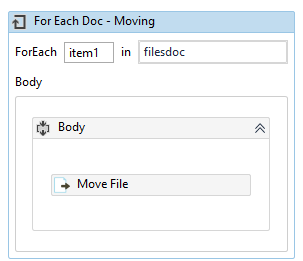
Take For each activity t move each doc file to move to doc folder (For each fildedoc)
Step 10 :

Move file activity to move doc files to doc folder
Step 11 :

Take a assign activity to get the files from Pdf folder (pdf_List)

Step 12 :

Take a assign activity to get the files from doc folder (doc_List)

Step 13 :

Take For each activity to sort pdf files to sort and move files (for each pdf_List)
Step 14 :

Start the process under for each body to start sorting with condition.
Step 15 :

Read pdf with ocr  for item  and store it in avariable (valuepdf)
Step 16 :

Use Flow decision to use condition to sort 
Step 17 :

Condition for flow to sort based on technology name for pdf 

Note : add this condition for every flow decision  and insert the technology name in it based on your requirement.
 
Step 18 :

Move file to specified folder based on technology name folder which we have created earlier
Step 19 :

Use same For each for Doc files also to sort and move files to specified folder  (doc_List)

Step 20 : 

read doc files wit read text activity and store it in a variable  (valuedoc)
Step : 21 

Use flow decision to sort the doc files 
Step 22 :

Condition for flow decision sorting.
Note : 
 Take the n number of flow decision based on your requirement and conditions to sort.

This ends the workflow design save it and Run.


Thank You,


What is RPA ?

Saturday, August 3, 2019

First Post

What is Automation?

Automation is the technology by which a process or procedure is performed with minimal human assistance


UiPath Video Tutorial

lol video tutorial

Snippet

lol snippet

Documentation

lol Documentation

introduction

What Is RPA?


•RPA is a technique to reduce human effort and improve 

   performance simultaneously.


•Robot  is designed to mimic human actions.


•Automate the task or work to be done automatically.