UiPath Automation For HR process
Resumes Sorting
Description: I a Hr Process there are more than 500 resumes and Hr need s to screen each and every resume and sort based of job profile and Technology for conducting Interview based on requirement so it takes Lot of Time for Hr to screen each and every resume so with the help of RPA this can be automated where Robot scan each and every resume whether it is PDF or Word file and move the particular to respected folder name of technology so it becomes easy for Hr to directly to particular folder and view the resume instead of screening all resumes.
Prerequisites: 1. Create a root folder where you save all your Resumes(PDF+Word).
2. Create sub folder where you want to save all sorted resume based on technology name .
Lets Start;
Step 1 :
Take a assign activity and create a variable for root folder (RootFolder)
Step 2:
Take a assign activity and create a variable for resumes folder (ResumesFolder)
Step 3 :
Take a assign activity to store the location of Pdf folder (pdfResume_Folder)
Step 4 :
Take a assign activity to store the location of Pdf folder (docResume_Folder)
Step 5 :
Take a assign activity to get files from pdf folder (filedpdf)
Step 6 :
Take a assign activity to get files from Docfolder (fileddoc)
Step 7 :
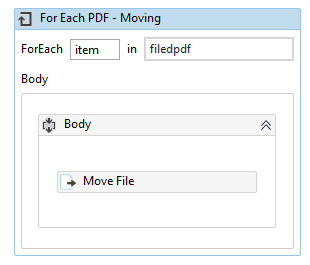
Take For each activity t move each pdf file to move to pdf folder (For each fildepdf)
Step 8 :
Move file activity to move files to pdf folder
Step 9 :
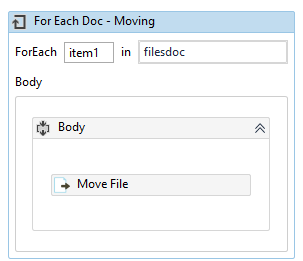
Take For each activity t move each doc file to move to doc folder (For each fildedoc)
Step 10 :
Move file activity to move doc files to doc folder
Step 11 :
Take a assign activity to get the files from Pdf folder (
pdf_List)
Step 12 :
Take a assign activity to get the files from doc folder (
doc_List)
Step 13 :
Take For each activity to sort pdf files to sort and move files (for each pdf_List)
Step 14 :
Start the process under for each body to start sorting with condition.
Step 15 :
Read pdf with ocr for item and store it in avariable (valuepdf)
Step 16 :
Use Flow decision to use condition to sort
Step 17 :
Condition for flow to sort based on technology name for pdf
Note : add this condition for every flow decision and insert the technology name in it based on your requirement.
Step 18 :
Move file to specified folder based on technology name folder which we have created earlier
Step 19 :
Use same For each for Doc files also to sort and move files to specified folder (doc_List)
Step 20 :
read doc files wit read text activity and store it in a variable (valuedoc)
Step : 21
Use flow decision to sort the doc files
Step 22 :
Condition for flow decision sorting.
Note :
Take the n number of flow decision based on your requirement and conditions to sort.
This ends the workflow design save it and Run.
Thank You,